
Appearance
SSL/TLS Certificates
To get a HTTPS on your website, you will need to Install an TLS Certificate. You will learn how to get and install a valid, trusted TLS Certificate on your Spookhost website from this guide.
TIP
Free subdomains already have TLS automatically covered and HTTPS is automatically enabled. You do not need to do this if you are using a free subdomain.
INFO
All custom domain websites have self-signed TLS certificates automatically installed, but they are not trusted by browsers. You will need to install a valid, trusted TLS certificate to get HTTPS on your website.
Available Certificate Authorities
- ZeroSSL
- Let’s Encrypt
- Google Trust Services (Default)
INFO
You are not limited to these 3 CAs, you can bring your own certificate too!
WARNING
We have recently hit random errors with the ZeroSSL API and certificates may not be issued correctly. We recommend using Let’s Encrypt or Google Trust Services for now.
Available Key Algorithms
- EC 256 (Default)
- EC 384
- RSA 2048
INFO
ZeroSSL does not support RSA 2048 in our TLS Tool
Requesting a certificate
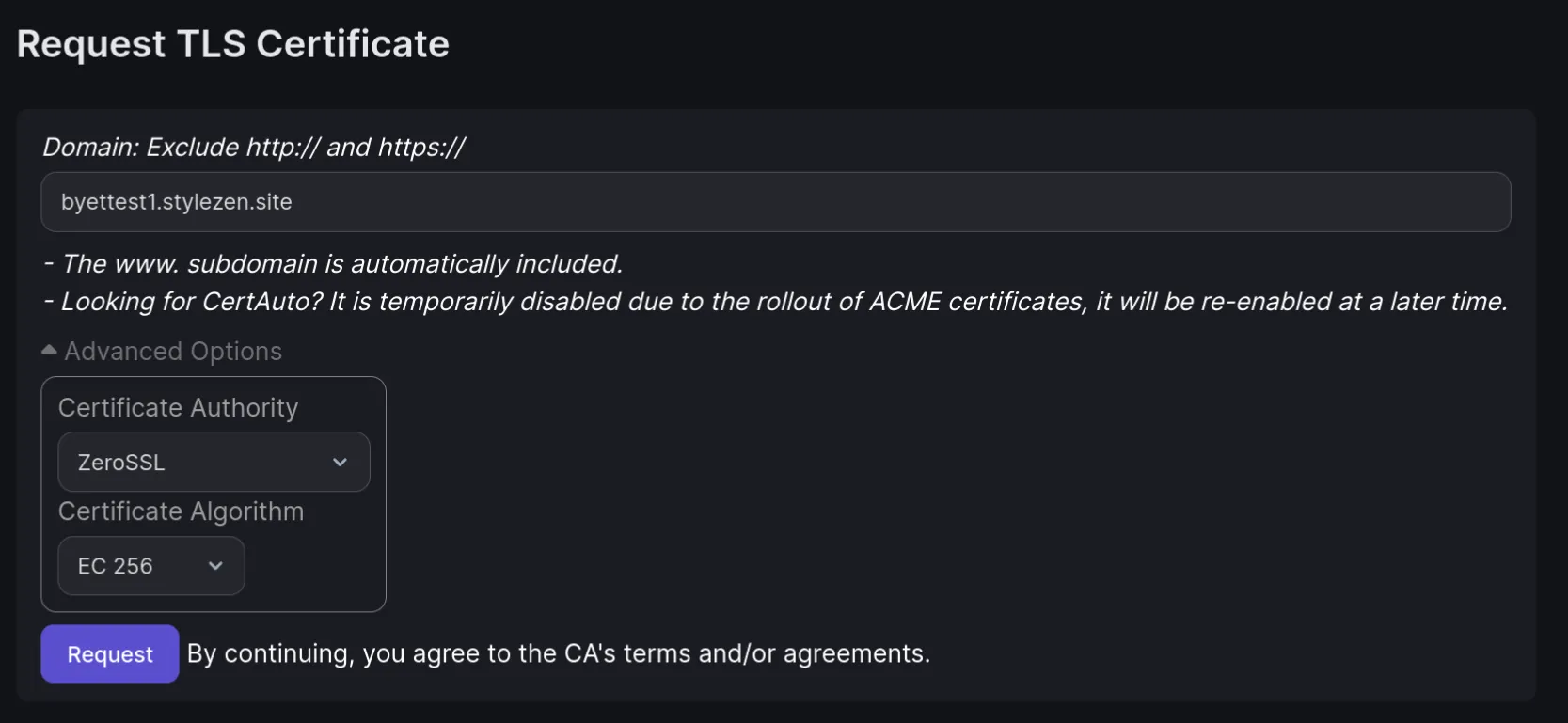
Login to the Client Portal Create TLS Section.
Type in your domain (e.g.
example.com)Under “additional options,” you may choose your preferred Certificate Authority and Key Algorithm.
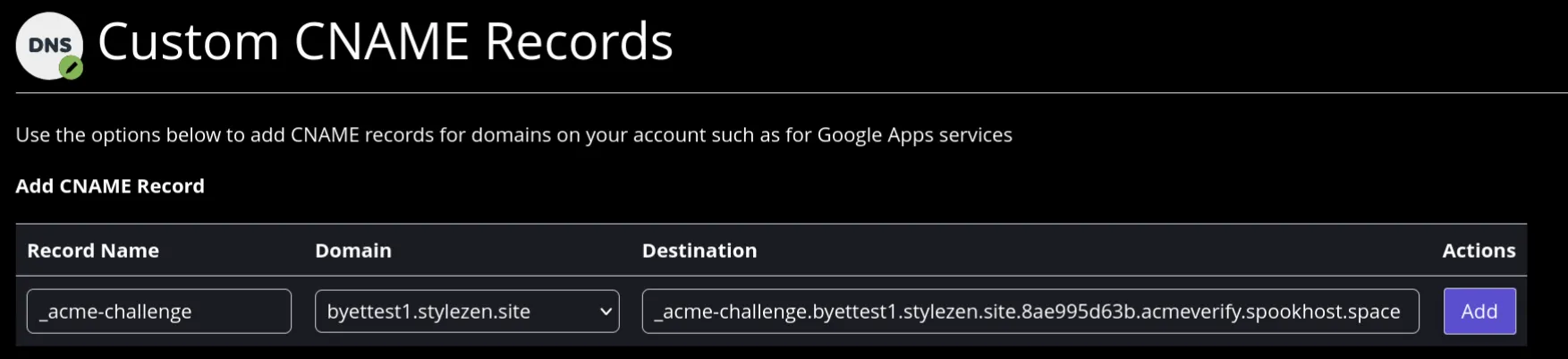
Login to the control panel (or your DNS provider), and create a new CNAME Record
Paste
_acme-challengeinto theRecord Name/SourceFieldPaste the whole "Record Content" shown in our Client Portal to the
DestinationField.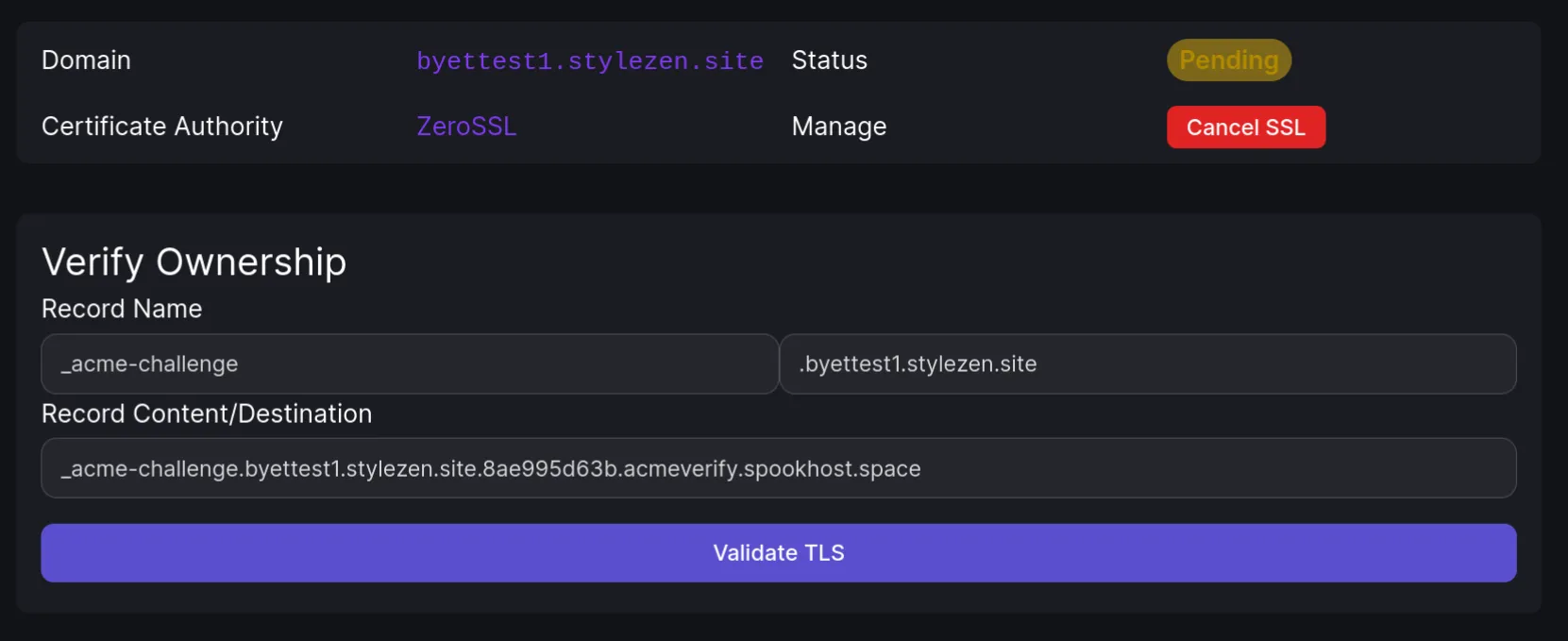
 Go back to the Client Portal and click “Validate TLS”
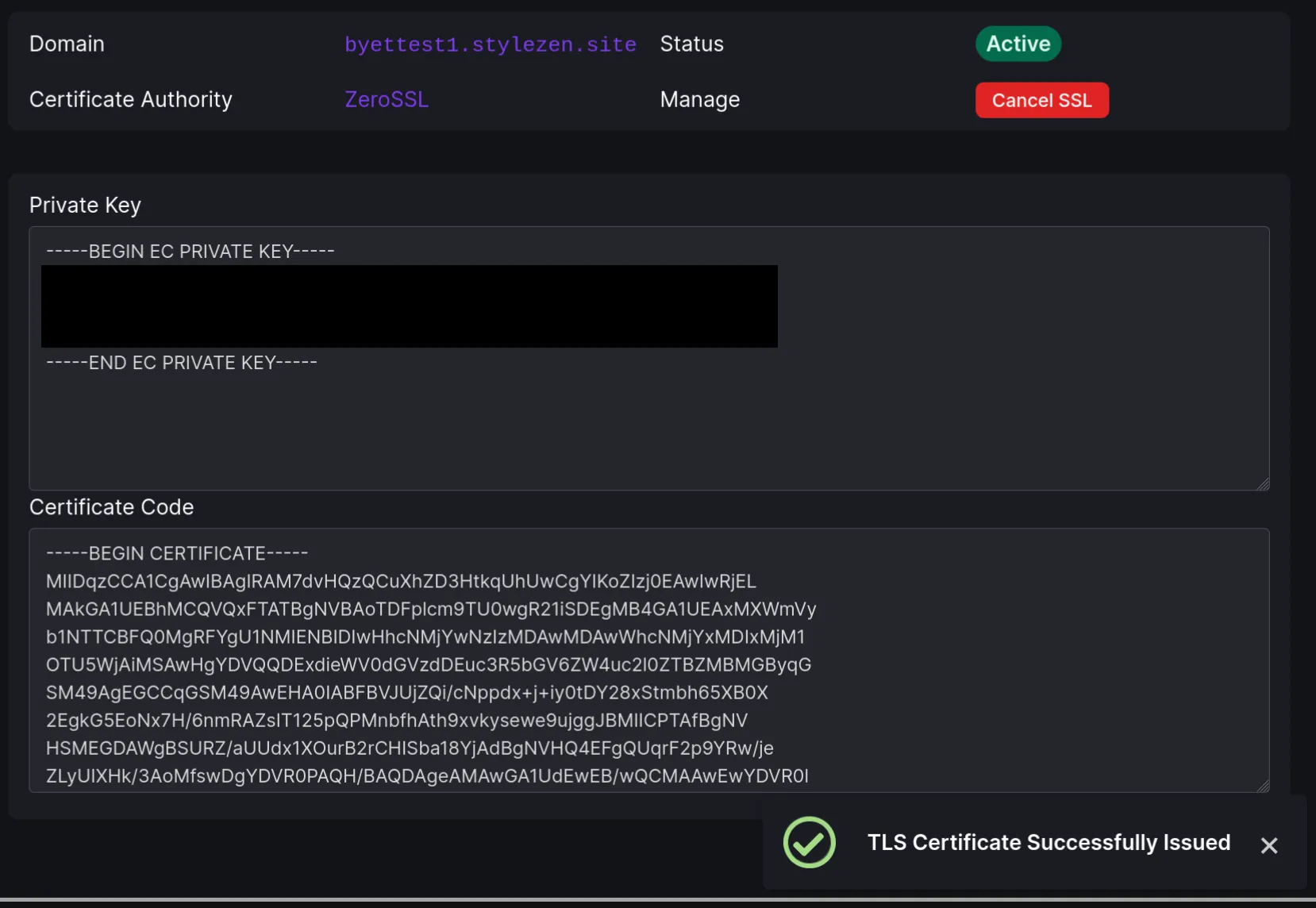
Patiently wait for about 2 minutes for the CA to validate the your domain and issue the certificate.
You will get your private key and full certificate chain.
IMPORTANT
Private key is sensitive data, DO NOT leak it.
Installing a certificate
- Login to your space Control Panel, and navigate to SSL/TLS and choose your domain.
- Paste in the private key
- Paste in the certificate. For maximum compatibility, we recommend pasting the full certificate chain, the “Certificate” box from the Spookhost Client Portal TLS Tool is formatted already, you may paste everything there into the certificate option in the Control Panel
IMPORTANT
Private key is sensitive data, DO NOT leak it.
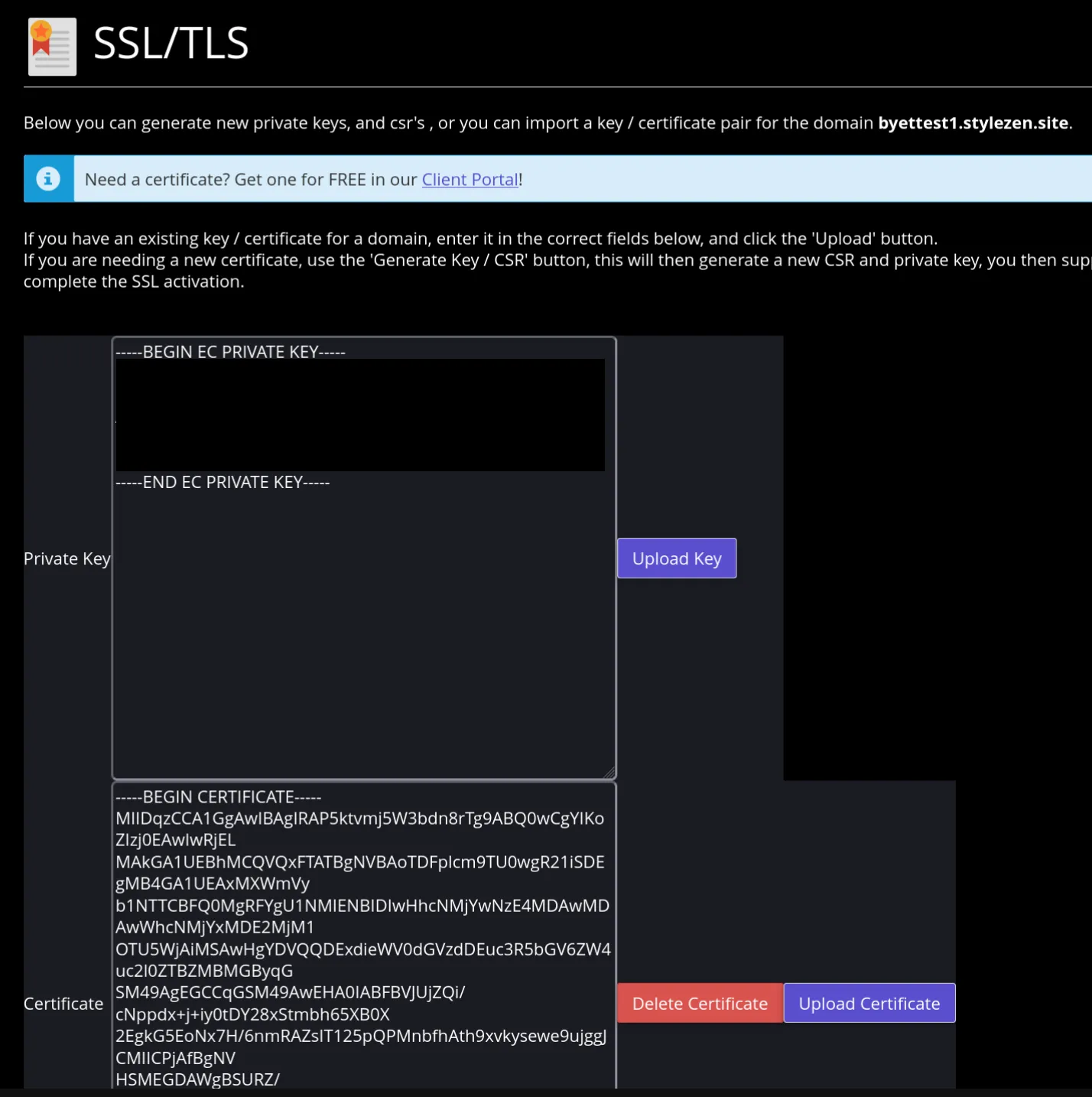
- Wait for around 1 hour for the certificate to be deployed
- Visit your website with HTTPS.