
Appearance
SMTP2GO Integration
You may use SMTP2GO to send emails from your website. SMTP2GO is a reliable email delivery service that ensures your emails reach the inbox and not the spam folder.
Note
SMTP2GO is a 3rd party service that Spookhost is parternered with, and you will need to create an account with them to use their service.
Spookhost has no control over SMTP2GO, and we are not responsible for any issues that may arise, or new changes to limits from using their service. Please contact SMTP2GO support for any issues related to their service.
Email Limits
Currently, SMTP2GO has the following limits for free accounts:
- 1,000 emails/mo
- 200 emails/day
- Extra emails not permitted
- 5 days of email reporting
- Ticket support only
- 5 sender domains
These limits are sufficient for most small websites, but if you need more, you may upgrade to a paid plan with SMTP2GO.
WARNING
Please note that these limits are subject to change by SMTP2GO at any time, and Spookhost is not responsible for any changes to these limits. Please check SMTP2GO's website for the most up-to-date information on their limits and pricing.
The shown limits were accurate as of 24 July 2026.
Creating an SMTP2GO Account
- Go to SMTP2GO and Sign Up for a free account. You will need to verify your email address to complete the registration process.
Adding your domain to SMTP2GO
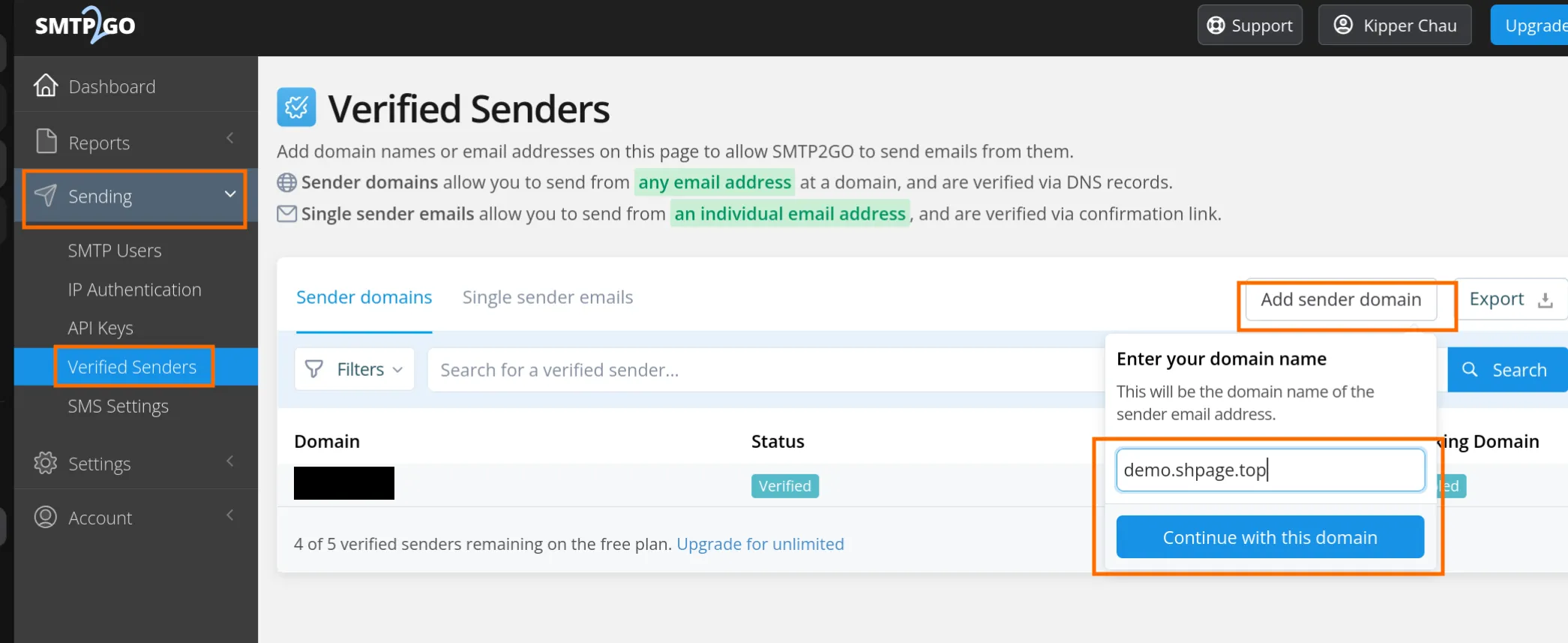
- In the dashboard, go to "Sending" > "Verified Senders" > "Add sender domain"
- Enter your domain name and click "Continue with this domain"
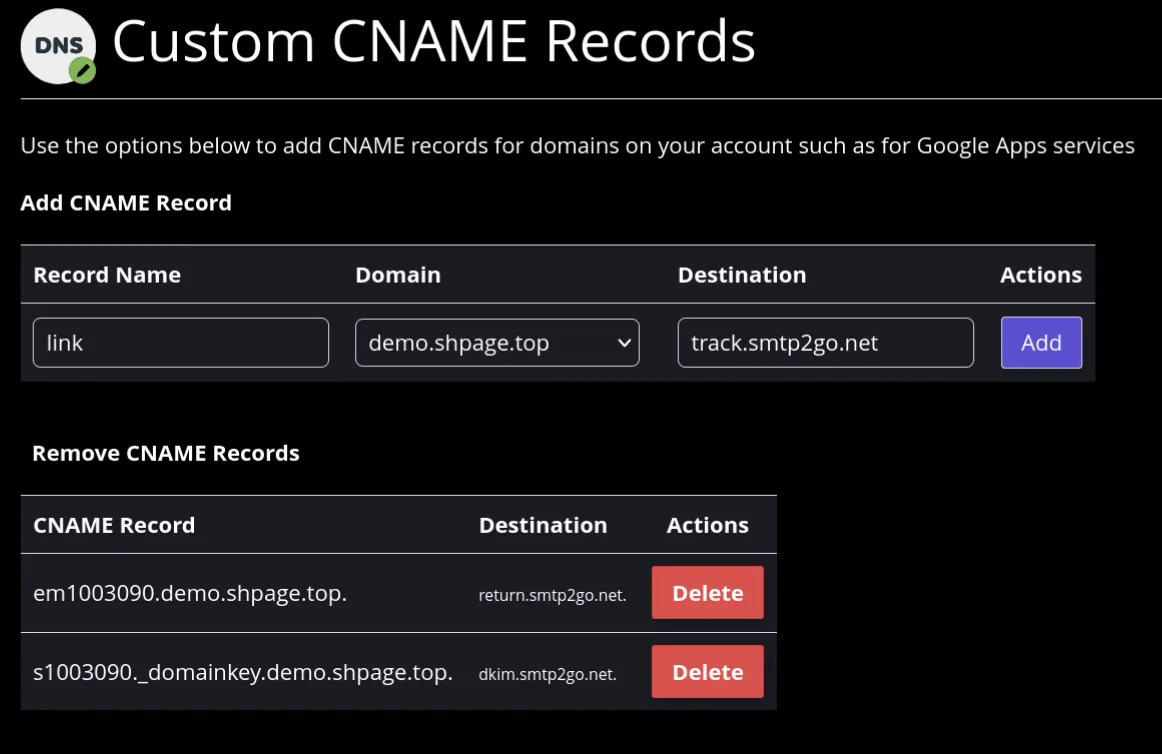
- Add the required CNAME records in the Control Panel or your DNS provider
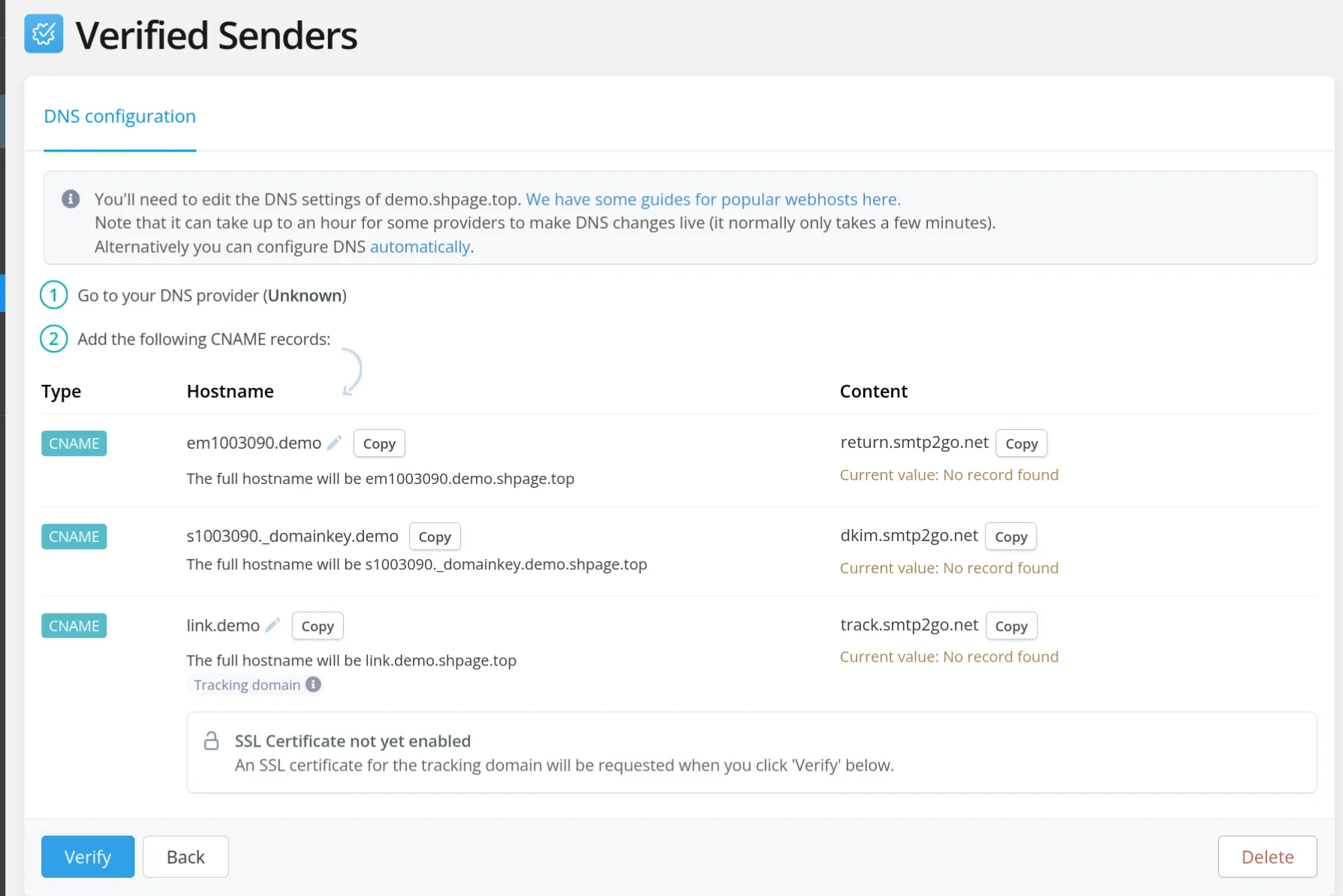
- Click "Verify" to complete the verification process
INFO
SPF and DKIM records are automatically added to your domain when you add the CNAME records.
See How SMTP2GO handles SPF for more information.
Creating an SMTP user
- In the dashboard, go to "Sending" > "SMTP Users" > "Add SMTP User"
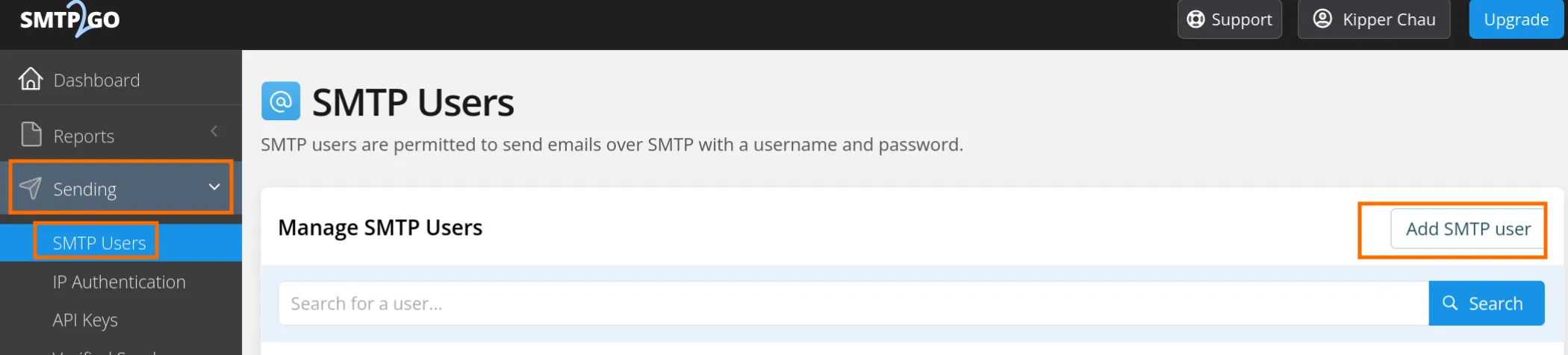
- Configure the Username, Password, Limits, Tracking, and more.
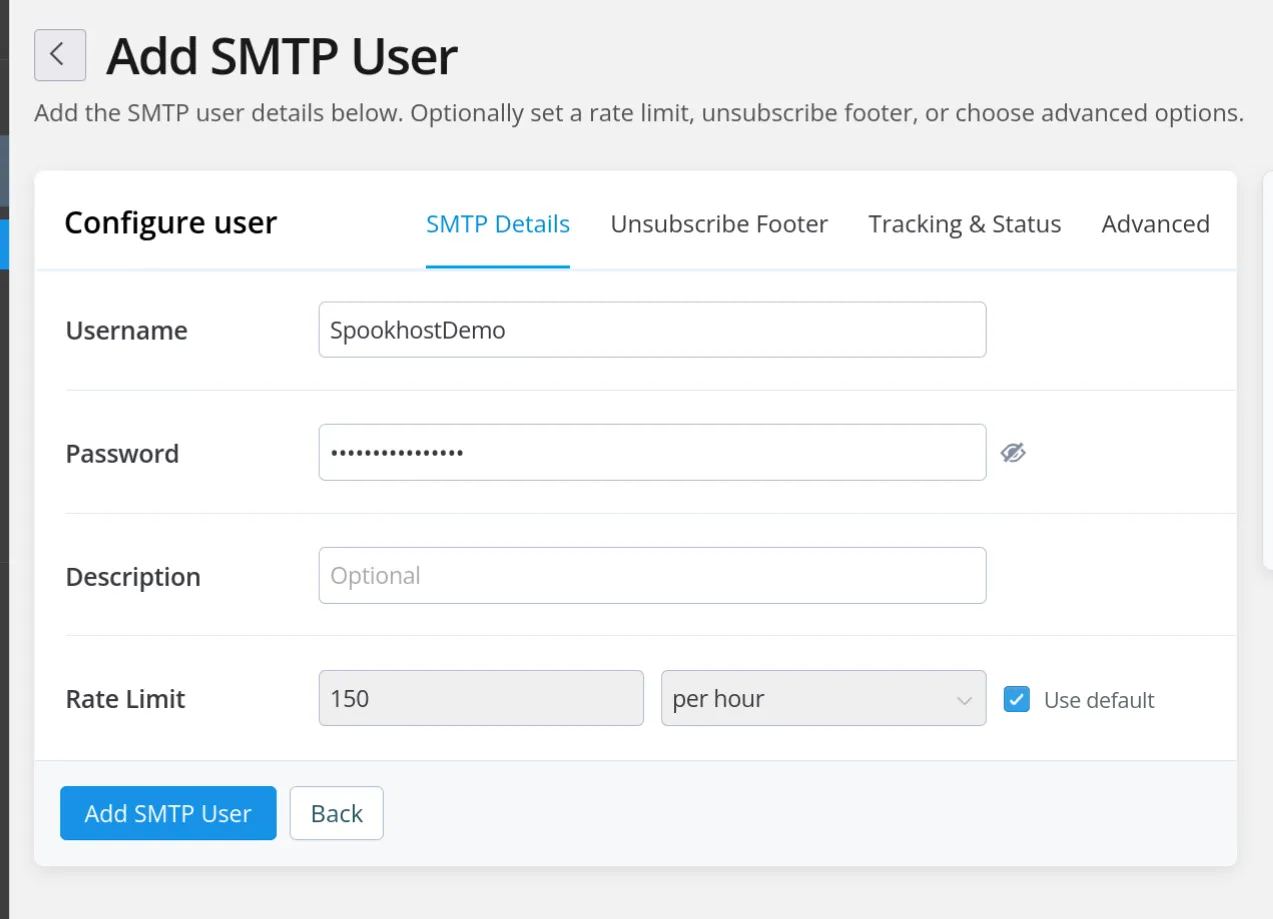
Your SMTP settings
Username: The username you created in the previous step
Password: The password you created in the previous step
SMTP Hostname: mail.smtp2go.com
SMTP Port: 465 (SSL / Implicit TLS) or 587 (STARTTLS / Explicit TLS)
Creating an SMTP2GO API Key
- In the dashboard, go to "Settings" > "API Keys" > "Add API Key"
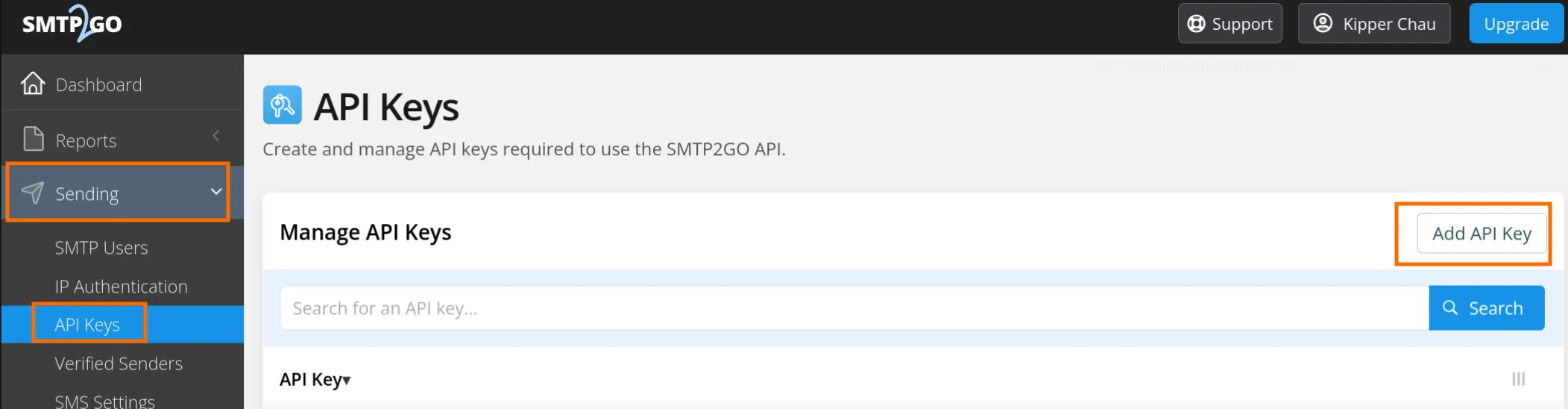
- Configure the API Key Name, Permissions, Tracking, Limits, and more.
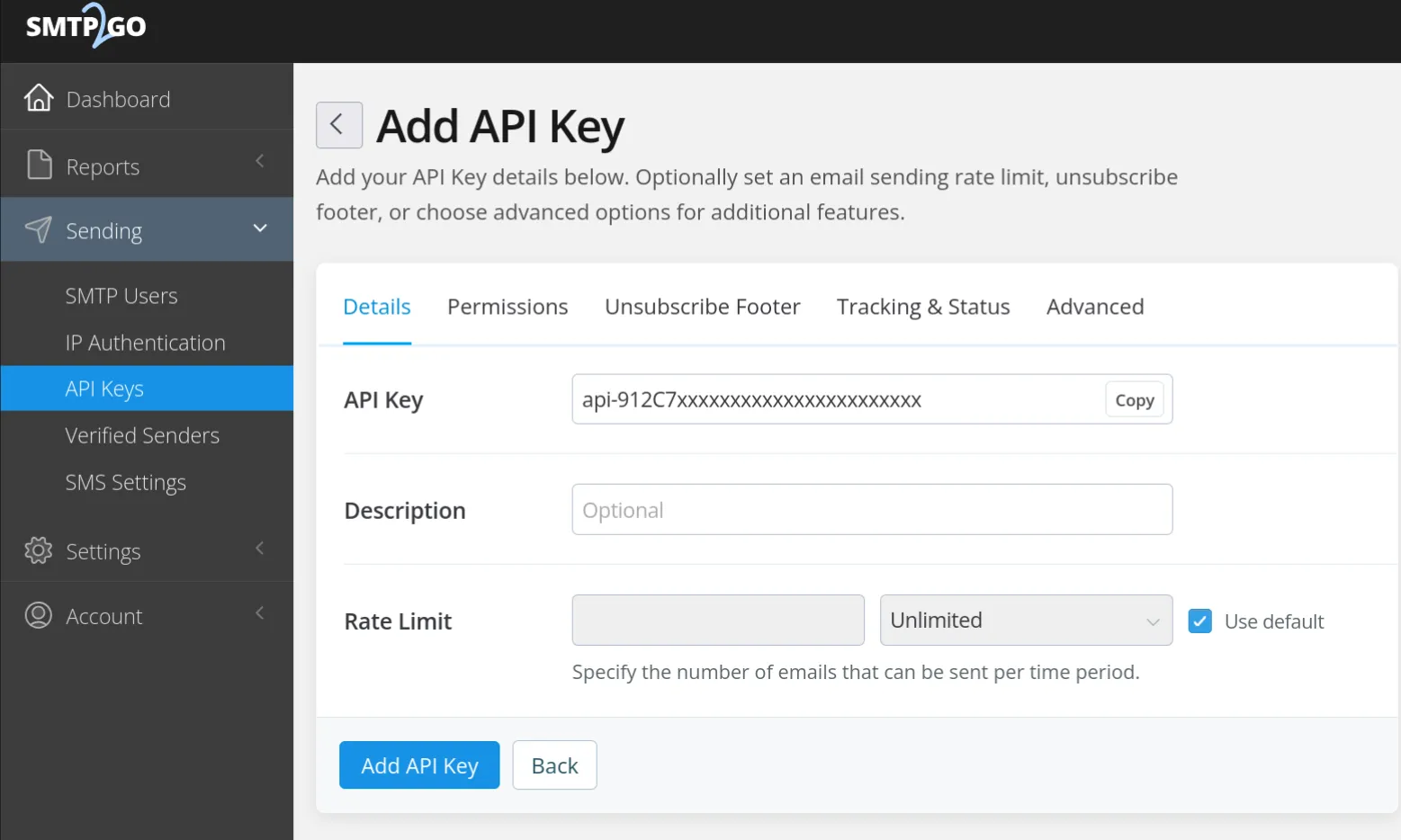
- Click "Add API Key" to create the API Key
INFO
To see how to configure your WordPress website to use SMTP2GO, please see our Integrating SMTP2GO with WordPress guide.